The Biofire Smart Gun supports multiple authorized users in addition to the primary owner. Enroll up to four secondary users to grant trusted individuals access to the firearm while maintaining full control over system changes as the owner. Please refer to the Smart Gun Owner and Users article to learn more about user permissions.

Handle your Smart Gun safely and responsibly at all times. Failure to follow proper firearm safety practices can lead to injury, death, and/or damage.
- Keep the muzzle of your Smart Gun pointed in a safe direction at all times.
- Keep your finger off the trigger of your Smart Gun until ready to fire.
- Only point the Smart Gun at intended targets, and always know your target and what lies beyond your target.
- Always treat your Smart Gun as if it is loaded, even after clearing it.
- Make sure your Smart Gun is unloaded and clear before any cleaning or service and always wear eye protection when cleaning or servicing your Smart Gun.
- Always read and follow the Product Manual.

new User Enrollment Process
Step 1: Connect & Authenticate
- Connect your Smart Gun to the Dock with the Dock connected to wall power
- Authenticate to login into the Dock as the owner by placing middle finger on the biometric sensor, or by presenting your face squarely to the rear of the Smart Gun to unlock administrative functions
Step 2: User Settings Navigation
- After authentication, select the User icon to view settings
- The following information will be presented:
- A list of currently registered users
- A label next to the owner's name
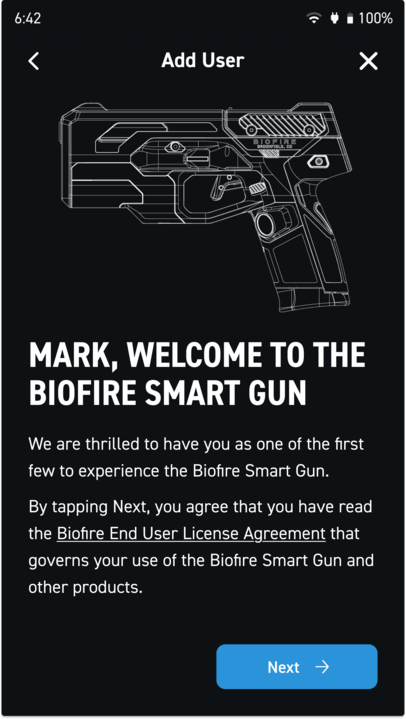
Step 3: New User Creation
- Click the plus sign (+) in the top-right corner
- Enter a unique name for the new user:
- This can be a real name or nickname
- This name identifies the user's biometric profile and personal settings, and cannot be the same name as another user
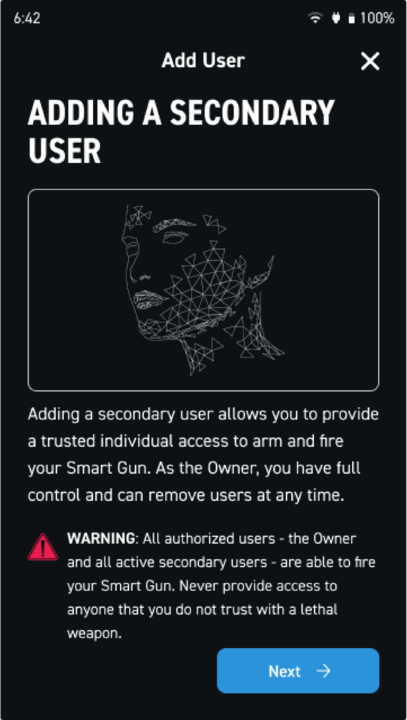
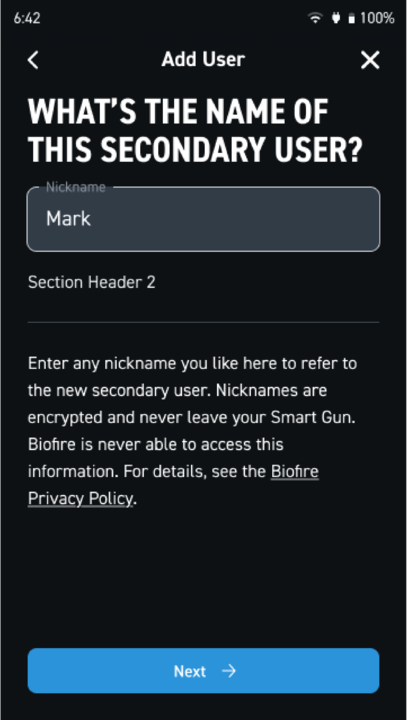
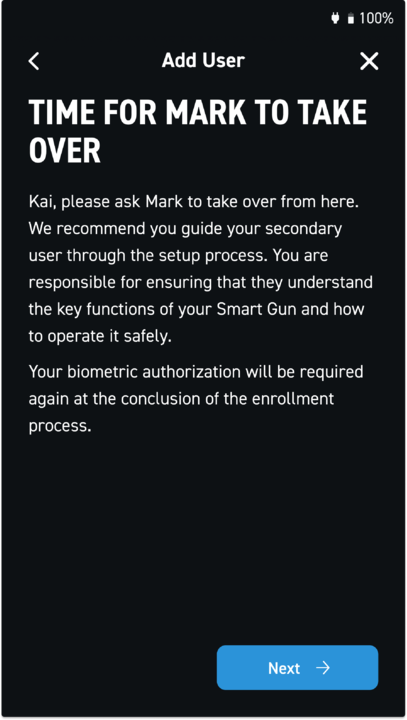
Step 4: Biometric Enrollment
- Begin the biometric enrollment process for the new user
- The enrollment process will be similar to the owner enrollment from initial setup
- Follow on-screen prompts and refer to the Fingerprint Enrollment and Facial Enrollment articles as needed
- If the secondary user is a different handedness than the primary user, Biofire encourages the secondary user to enroll their non-dominant hand during the fingerprint enrollment, even though they will likely rely primarily on facial recognition for authentication
All personal information collected is subject to Biofire's Privacy Policy available at smartgun.com/legal/privacy-policy
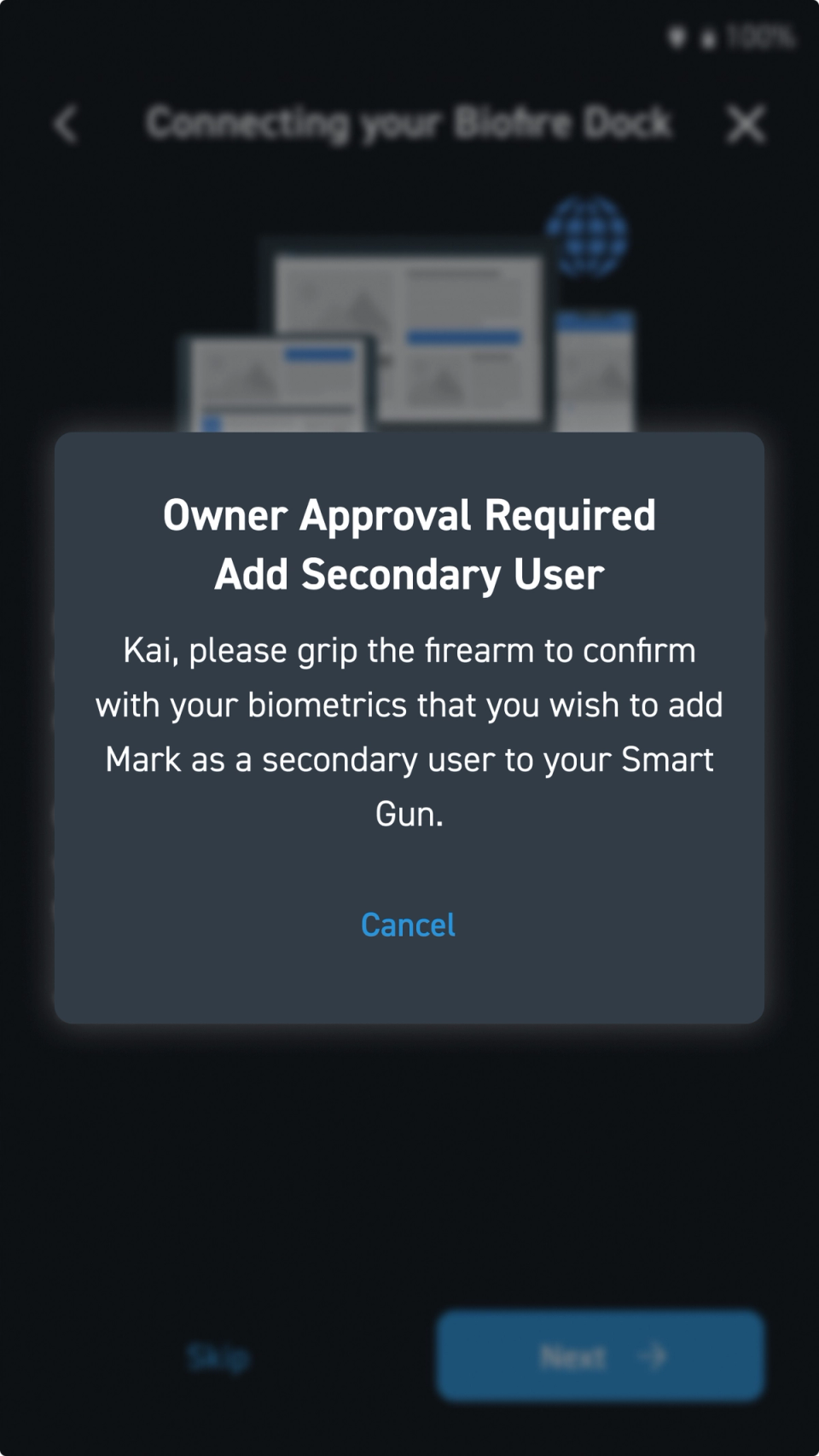
Step 5: Owner Authorization
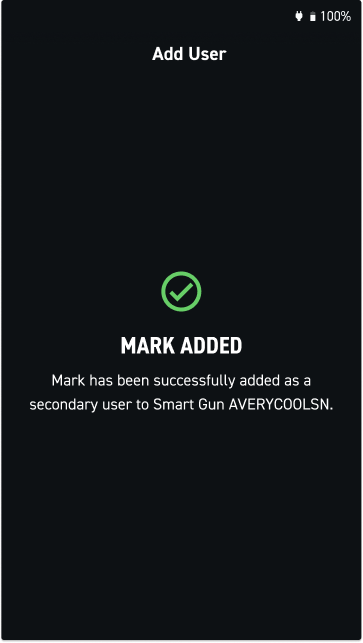
- The owner will need to authenticate to authorize the addition of this secondary user and to save the enrollment
- Secondary users cannot be added without the owner's approval
Secondary User Permissions and Access
After successful enrollment:
- Secondary users can:
- Arm and discharge the Smart Gun without the owner present
- Adjust Personal Settings such as laser, etc for their user settings
- Secondary users cannot:
- Add or remove users Including themselves
- Perform Smart Gun software updates
- Factory reset the Smart Gun
- Access settings
The owner retains full administrative control and must always confirm any changes to the Smart Gun, with the exception of a secondary user's Personal Settings.
Please refer to the Smart Gun Owners and Users article for more information.