Grip sizing ensures The Biofire Smart Gun best fits the primary user's hand for reliable fingerprint biometric sensor performance. Completing Grip sizing accurately using the Grip Sizing Template is important to ensure that Biofire can correctly configure your Smart Gun.
Please refer to the Smart Gun Sizing and the Gripping the Smart Gun article to learn more about the importance of Smart Gun size.
You'll receive an email and a Grip Sizing Template envelope in the mail after finalizing your Smart Gun order or you can print a template at home to accelerate the process. Your Smart Gun cannot complete manufacturing until the primary user's grip has been successfully submitted, and has been sized by Biofire.
You will be informed by Biofire when you can complete grip sizing, and you may not be able to submit if you attempt to complete sizing earlier.
Print your own template
Use the Grip Sizing Template you received in the mail, or download and print a copy. If you already have a template, skip these printing steps.
Download printable template (PDF)
- Print the PDF on US Letter paper (8.5 × 11 inches) at Actual size / 100%. Turn off “Fit to page” and any other scaling. Do not print a screenshot or this web page.
- Place a credit card on the printed outline to check the scale. If it does not match, correct your print settings and reprint.
- Remove the card before taking your photo.
- Keep all three markers and all four edges of the page visible in your photo.
Submit your photo on the website
Sign in to your Biofire account and open the grip sizing page for your order. Follow the hand-positioning and photo guidance below.
Sign in to your Biofire account
- Choose your primary photo, or select “Take a photo” on a device with a camera. Use a clear JPEG or PNG photo, up to 15 MB.
- Review the photo, then select “Submit Primary”. Wait for the page to confirm that your photo submission is saved.
- If another person will also be using the Smart Gun, select “Yes, submit Secondary” after submitting your primary photo. Follow the same instructions for their dominant hand, using the same template.
Keep your template until Biofire confirms sizing is complete. You can return to the grip sizing page to check your status or follow any request for a replacement photo.
Envelope Contents
You'll receive a large black paperboard envelope from Biofire which includes the materials needed to complete your grip sizing.
Find these items inside the Grip Sizing Template envelope:
- Instruction Sheet with visual guidance
- Grip Sizing Template (the measurement tool)
All personal information collected is subject to Biofire's Privacy Policy available at smartgun.com/legal/privacy-policy
Additional items needed
- Smartphone or tablet with a camera
- Your Biofire account on smartgun.com, or the Biofire Mobile App
- Good lighting
- A flat surface
- A second person to help take the photo
Grip Sizing Process
The steps below describe hand positioning and submission through the Biofire Mobile App. If you submit on the website, follow the same hand and photo guidance and use the website controls described above.
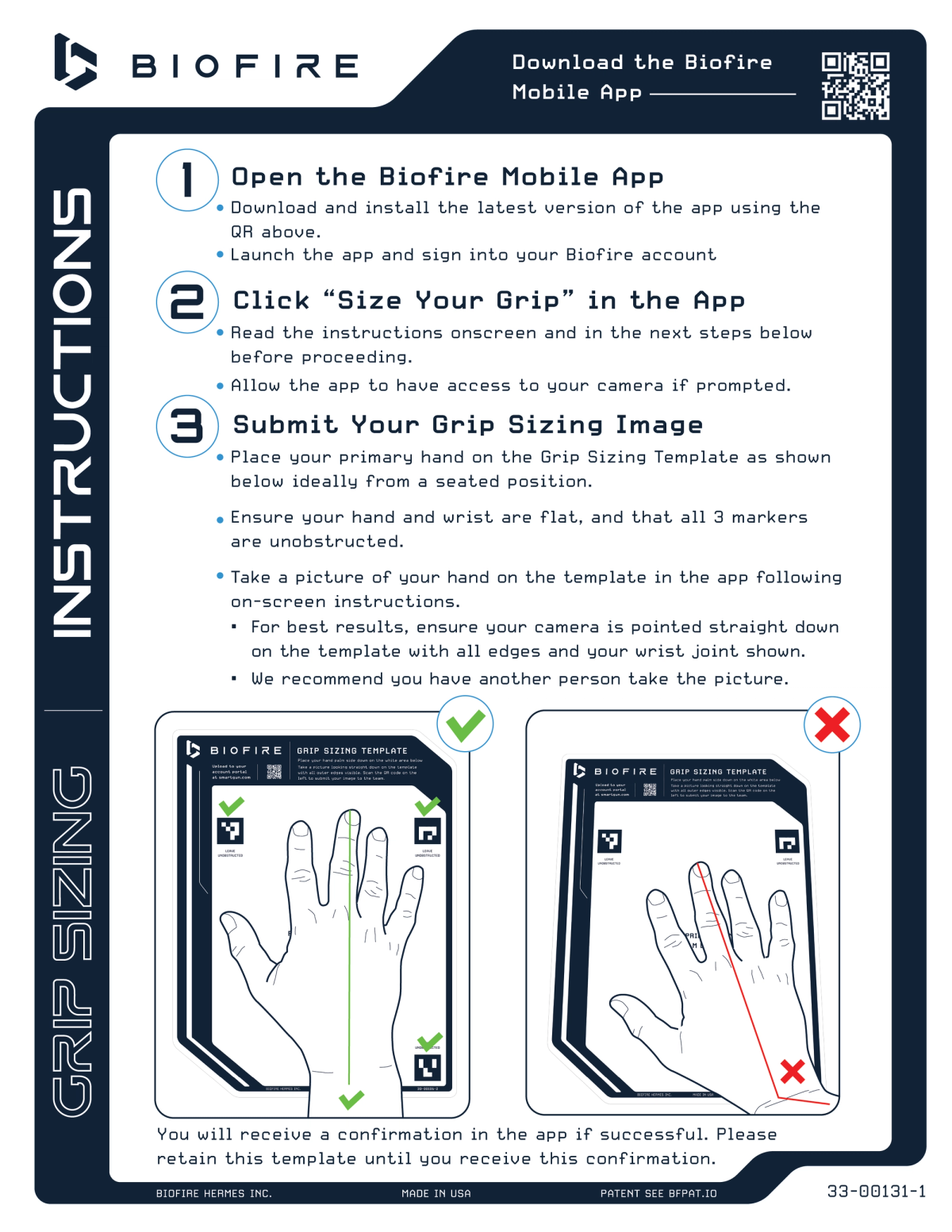
Step 1: Workspace Preparation
Place the Grip Sizing Template on a flat, stable surface in a well-lit area. Make sure there's enough light to clearly see all the markings on the template. Natural daylight or bright indoor lighting works best.
Step 2: Hand Positioning
- Place your dominant hand (the hand you'll use to shoot) flat on the template
- Align your hand according to the positioning guides printed on the template
- Check that all three index markers on the template are fully visible and not covered by your hand
- Keep your hand and wrist completely flat against the surface
- Make sure nothing is covering the wrist line area of the template
Important: Your hand should rest naturally on the template. Avoid stretching your fingers or adjust your hand position unnaturally, as the template is designed to capture your natural grip size.
Step 3: Biofire Mobile App Setup
- Launch the Biofire Mobile App on your smartphone or tablet
- Ensure that you have the most update to date version
- Log into your account
- Navigate to your order and select "Submit Grip Sizing Template"
- The camera viewer will open automatically
- Allow the app camera permissions if necessary
Step 4: Capture the Photo
Use your non-dominant hand to take the photo, or ideally ask someone to assist you.
Follow these steps:
- Hold your camera device directly above the template
- Ensure the entire template is visible in the camera viewer frame
- Verify that all three index markers are clearly visible
- Make sure your entire hand, including the wrist line, is in the frame
- Keep the template straight and not angled in the photo
- Avoid shadows falling across the template or your hand
- Press the shutter button to capture the image when everything looks clear
Step 5: Photo Review and Submission
- Review the photo preview in the app to ensure clarity and that all markers are visible
- Confirm and submit if the photo is clear and complete
- The app will upload your image directly to Biofire's sizing team
- A confirmation notification will appear, indicating that your submission was successful
Please do not discard your template until Biofire has accepted and confirmed your submission.
Post-Submission Process
After you submit your Grip Sizing photo:
- Biofire's sizing team will review the submitted measurements and determine the appropriate grip size for the Smart Gun
- Biofire will reach out if there was an issue requiring a resubmission
- Your Smart Gun will be configured with the recommended grip size before shipping, based on the submitted photo
- Your Smart Gun comes with interchangeable backstraps for fine-tuning
Multiple User registration
Complete an additional Grip Sizing submission if you will have a second primary user:
- Each user should follow the same process with their dominant hand, using the same template
- For an additional user, use the grip sizing page on smartgun.com. After submitting your primary photo, select “Yes, submit Secondary” and submit their dominant-hand photo. If you previously selected “No, just me”, use “Add a second person” when that option is available.
The primary user's measurements inform the base grip size and fingerprint sensor positioning. The included backstraps allow for additional adjustability.
Troubleshooting Common Issues
The photo is blurry or unclear:
- Ensure you have adequate lighting
- Hold your camera device steady or use a tripod
- Clean your camera lens
Not all index markers are visible:
- Reposition your hand on the template
- Make sure your fingers aren't covering any markers
- Take the photo from directly above, not at an angle
The app won't accept my photo:
- Check that the entire template is within the camera frame
- Ensure the image isn't too dark or overexposed
- Verify your internet connection for upload
- Ensure that your Biofire Mobile App is on the latest version
Please reach out directly to [email protected] if you are encountering any issues.